Lesson 4
Explore all the UI options available in StackAI—from chatbots to forms to Slack integrations—and choose the best one for your use case.
Once your agent’s logic is ready, it’s time to craft the ideal user experience. In this video, you’ll learn how to select and customize UIs for your StackAI apps, whether you’re building a chat assistant, a form-based tool, or a batch processor. You’ll also see how to embed your agent in Slack, Teams, WhatsApp, or your own product via the StackAI API.
Summary
Access the Export tab to choose a UI for your agent
Use the Chat Assistant (ChatGPT-style) for open-ended Q&A interactions
Build structured Form UIs with file upload, required fields, and conditional logic
Enable Batch Input to process multiple files at once and view results in a downloadable table
Chat directly with the batch results table to dig deeper into responses
Embed your agent into Slack, Microsoft Teams, WhatsApp, or SMS via Twilio
Walkthrough of adding StackAI to your Slack instance and setting up Twilio for messaging
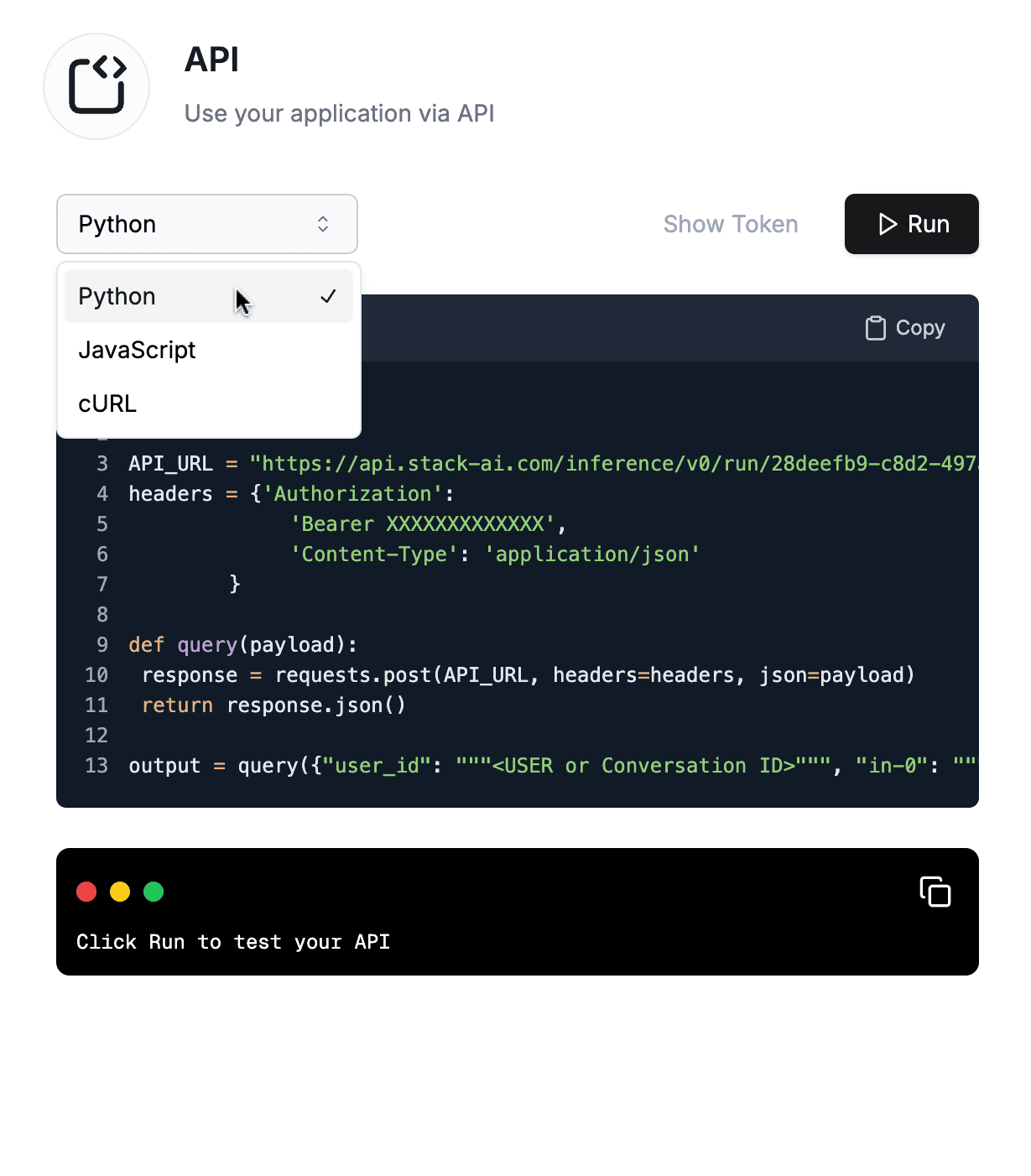
Use the API interface to integrate workflows into your own software
Run a live API test using curl to confirm everything works
Preview, save, and update your UIs easily using the Save Interface button
Next up: deep dive into file systems and knowledge bases
────────────────────────────────────────────────────────────────────────────────────
Course Overview
At Stack AI, our mission is to empower customers to create AI agents with confidence. To further that goal, we’re introducing Stack AI Academy — an educational series designed to guide and support you throughout your journey.
Stack AI Academy provides a strong foundation for success through structured, hands-on courses that explore the platform and demonstrate its capabilities.
Welcome to Stack AI Academy - Course #4 - Deep-Dive into User Interfaces. In this course, you’ll learn everything you need to know about UIs in Stack AI.
For the examples in the following blog, we’ll use the Stock Researcher Tool to showcase the different UIs in Stack AI.
Selecting User Interfaces in StackAI
In StackAI, you can give your AI agent multiple user interfaces, based on how you want users to interface with the app.
To set your AI agent’s UI, navigate to the Export tab.

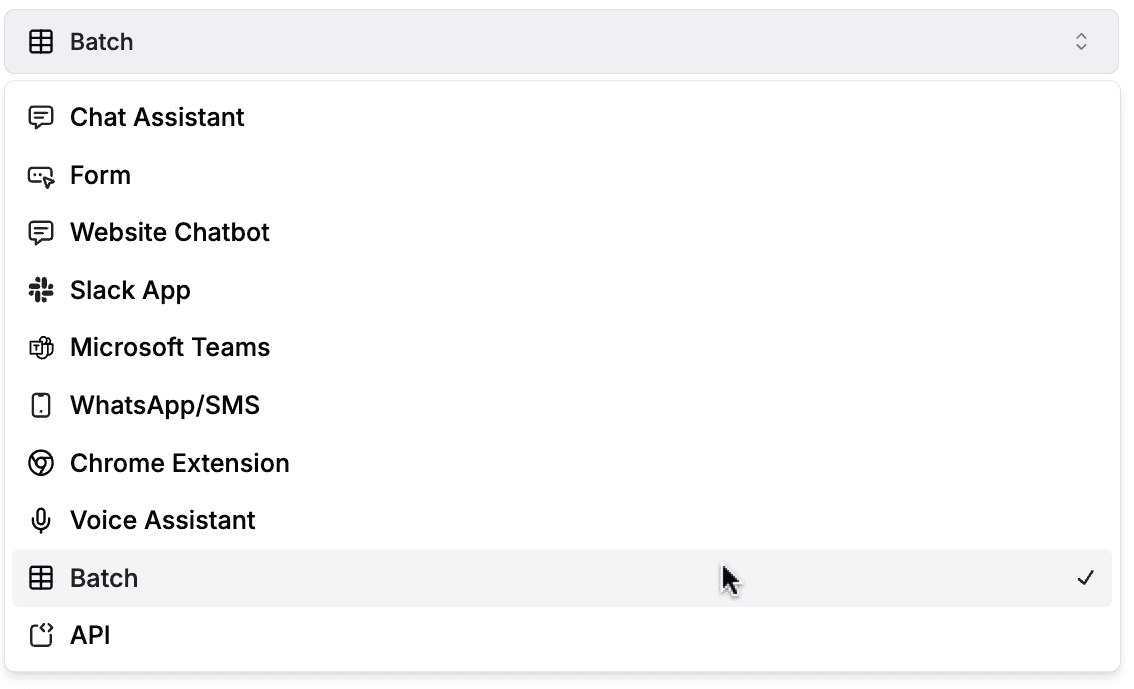
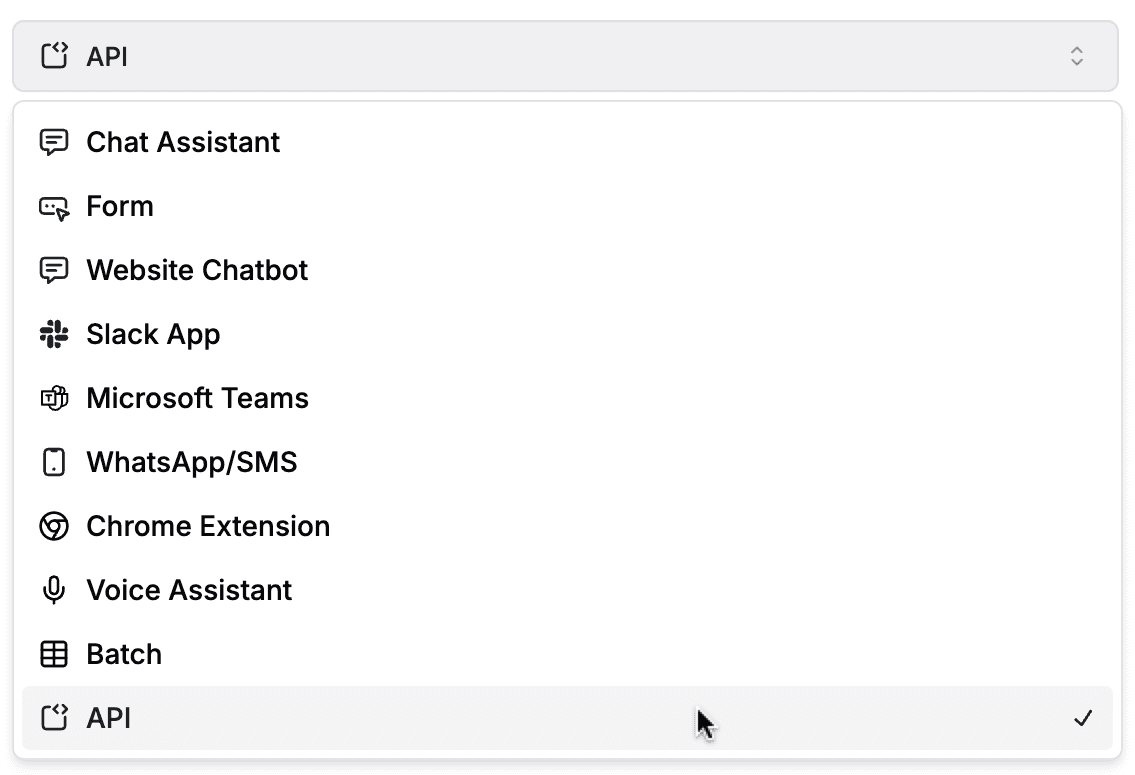
You can select the user interface tab to choose between several different UIs.
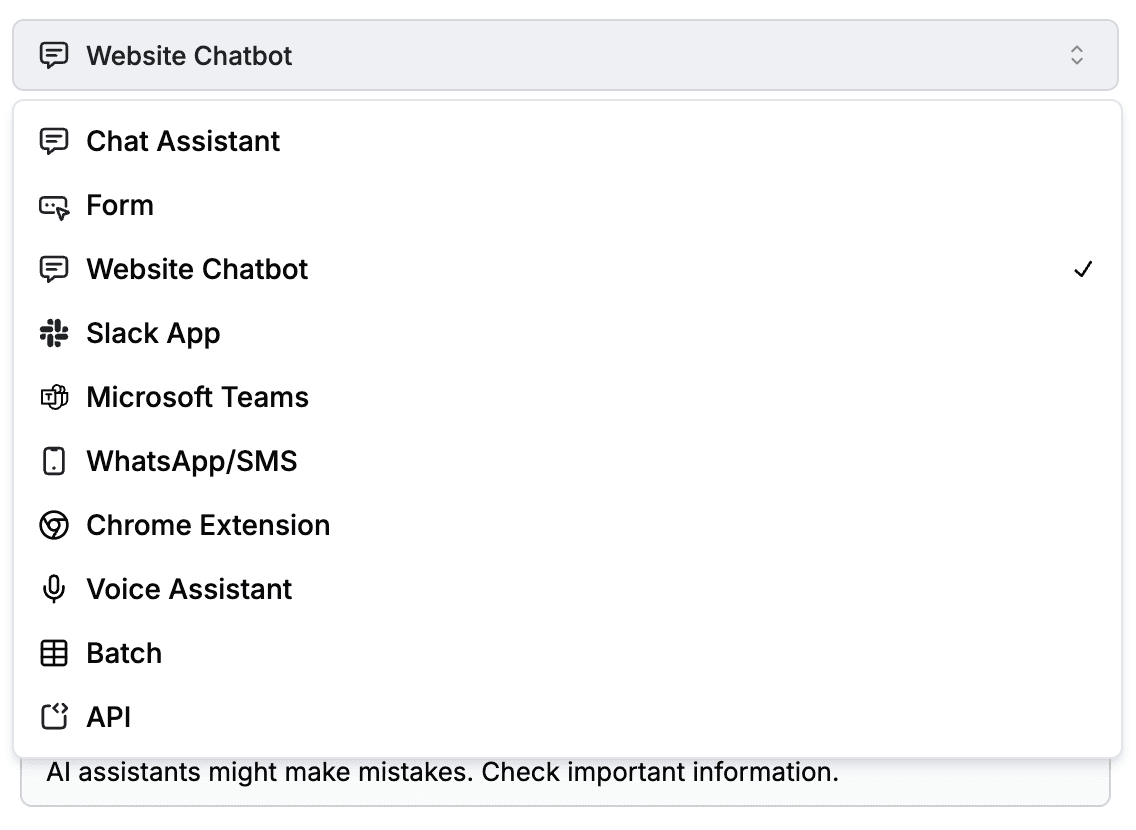
Chat Assistant
First, let’s take a look at the Chat Assistant interface.
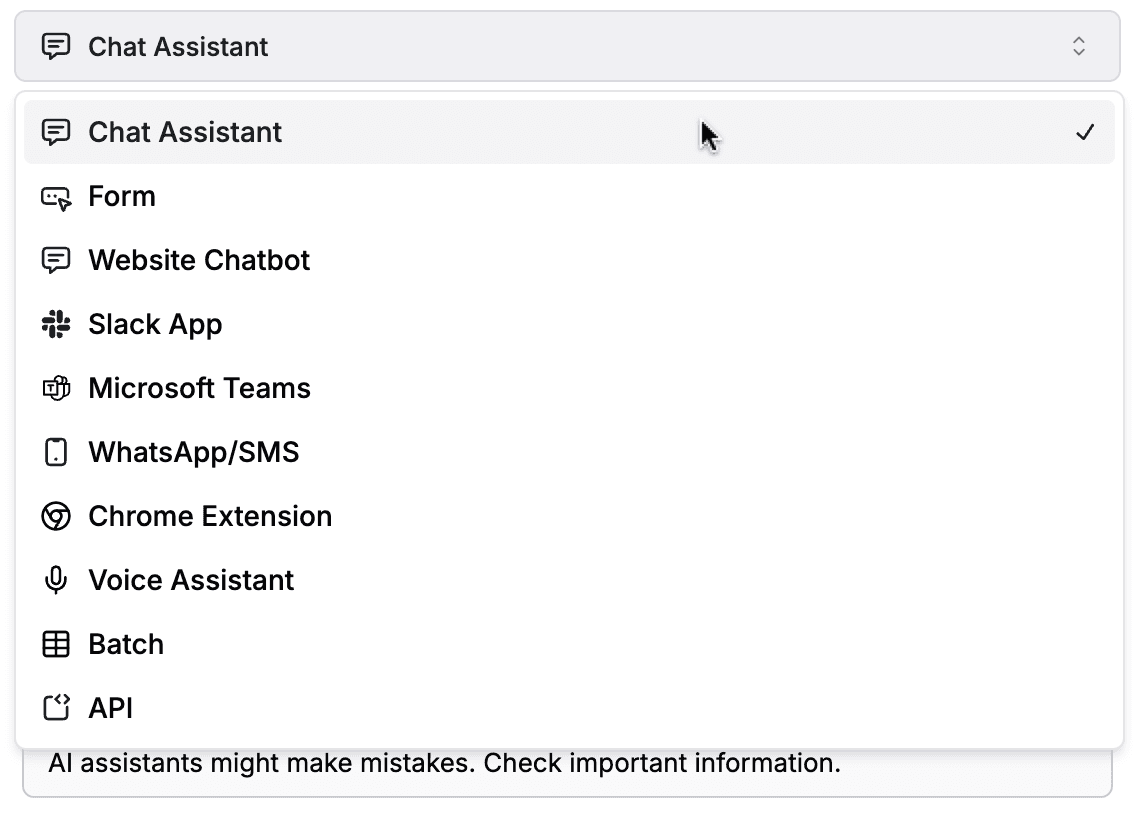
Chat Assistant is a ChatGPT-style interface that enables users to ask questions of the AI agent.
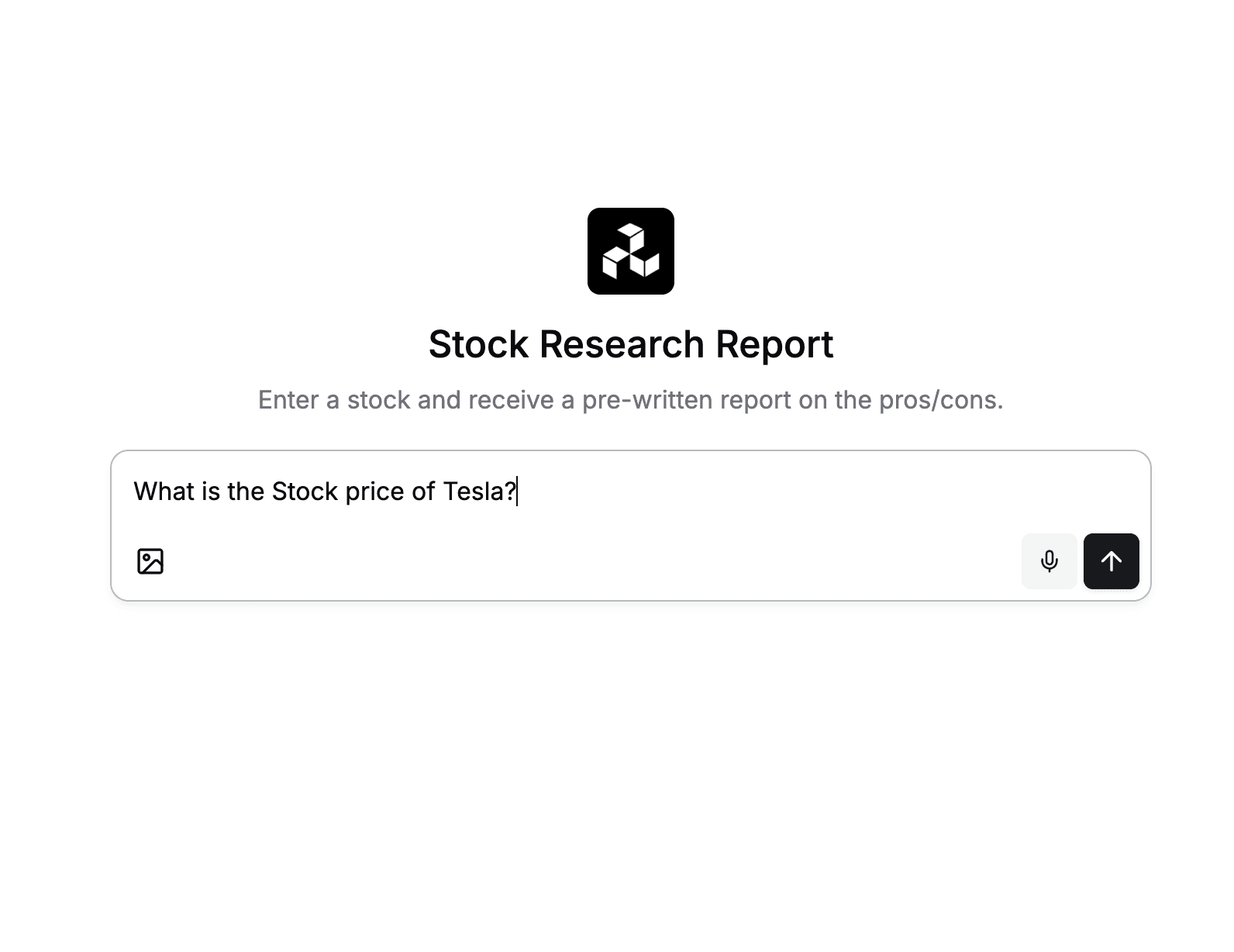
Chat Assistant will output answers, in this case reporting on the stock price fluctuations of Tesla.

Form
Now let’s try another user interface. Return to the UI dropdown and select “Form”.
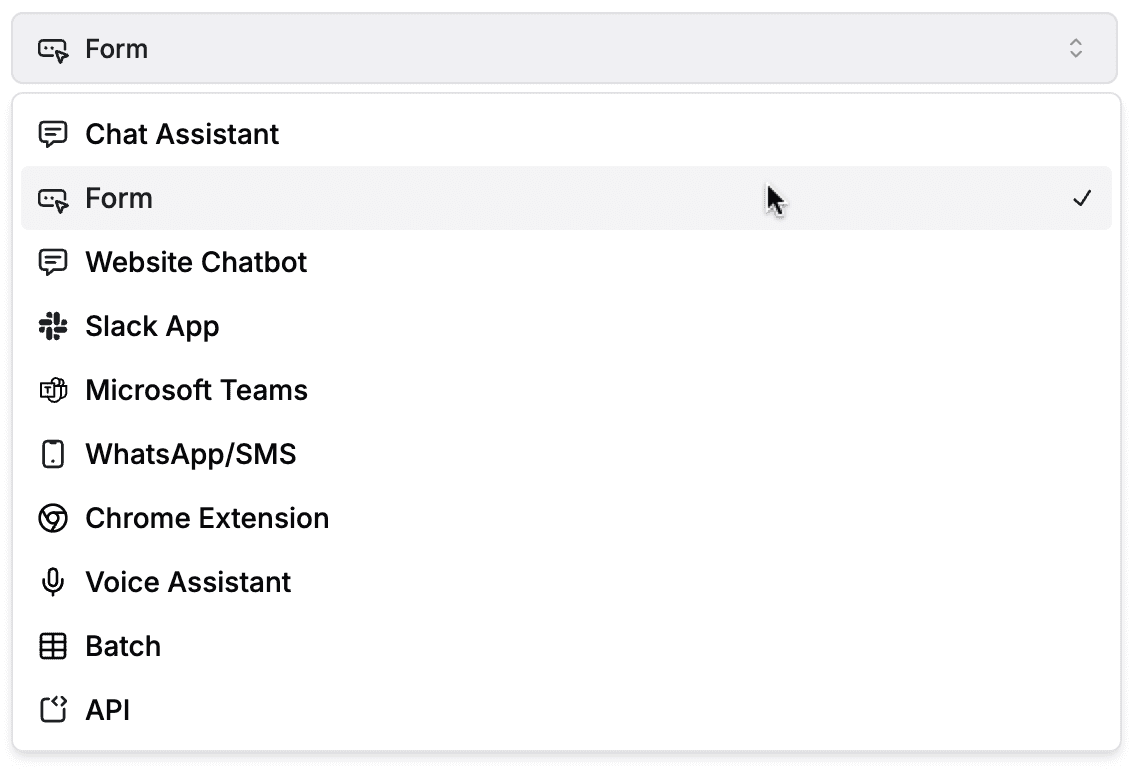
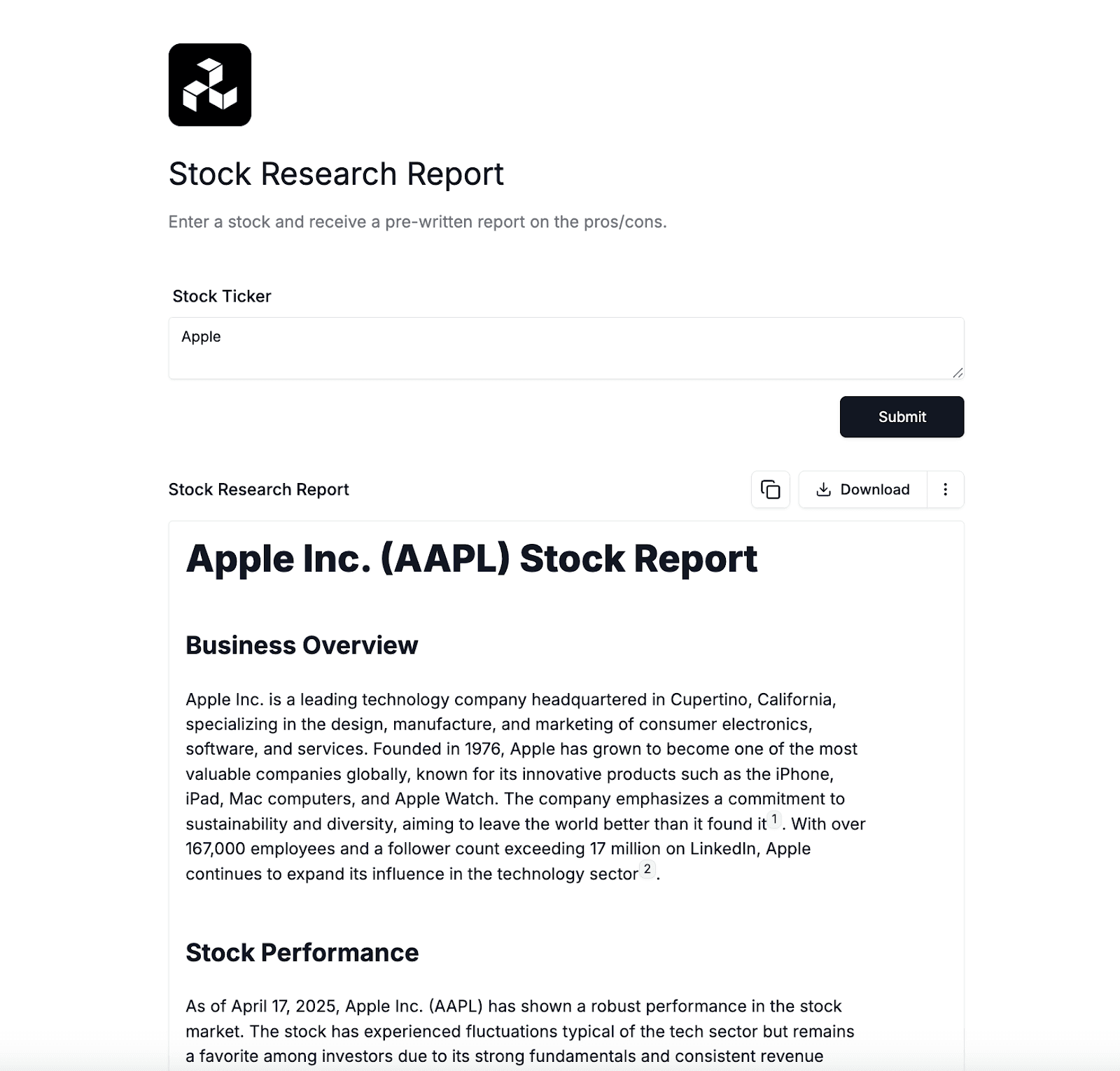
The Form will allow you to enter a company name and receive back a report on the stock.
The Form will display the report in the “Stock Research Report” box.
Website Chatbot
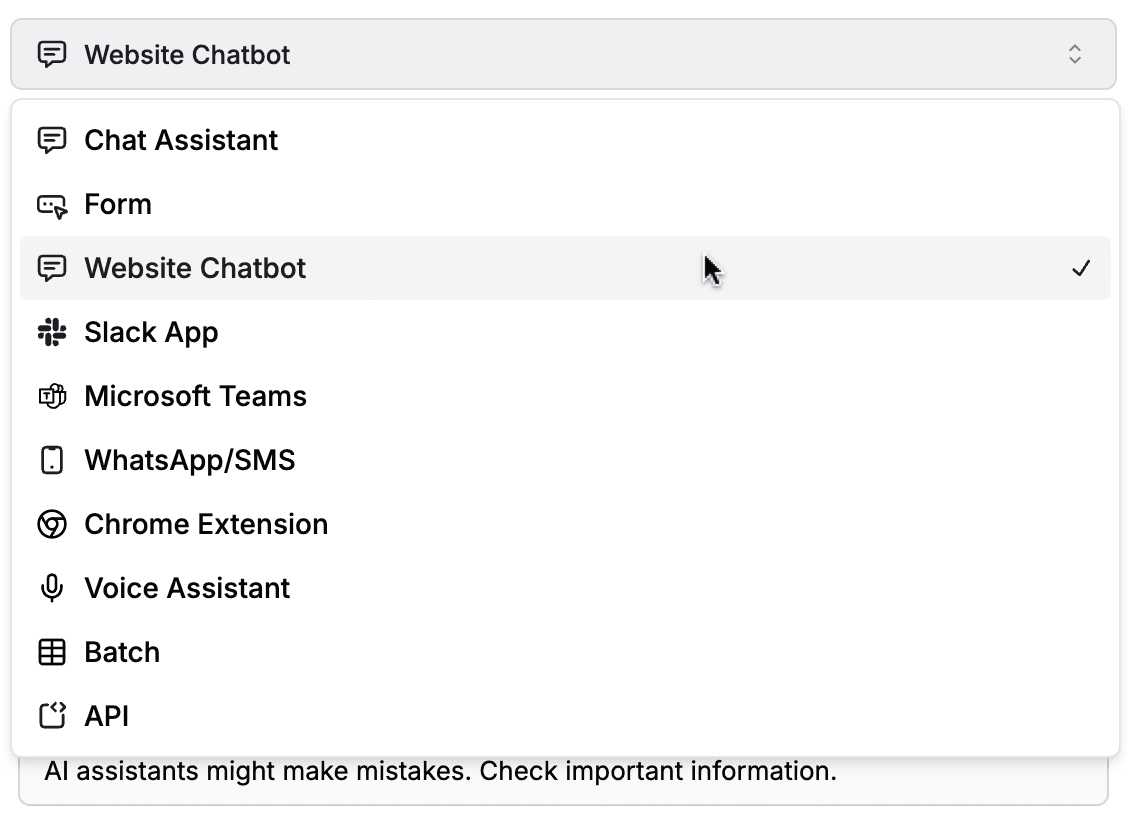
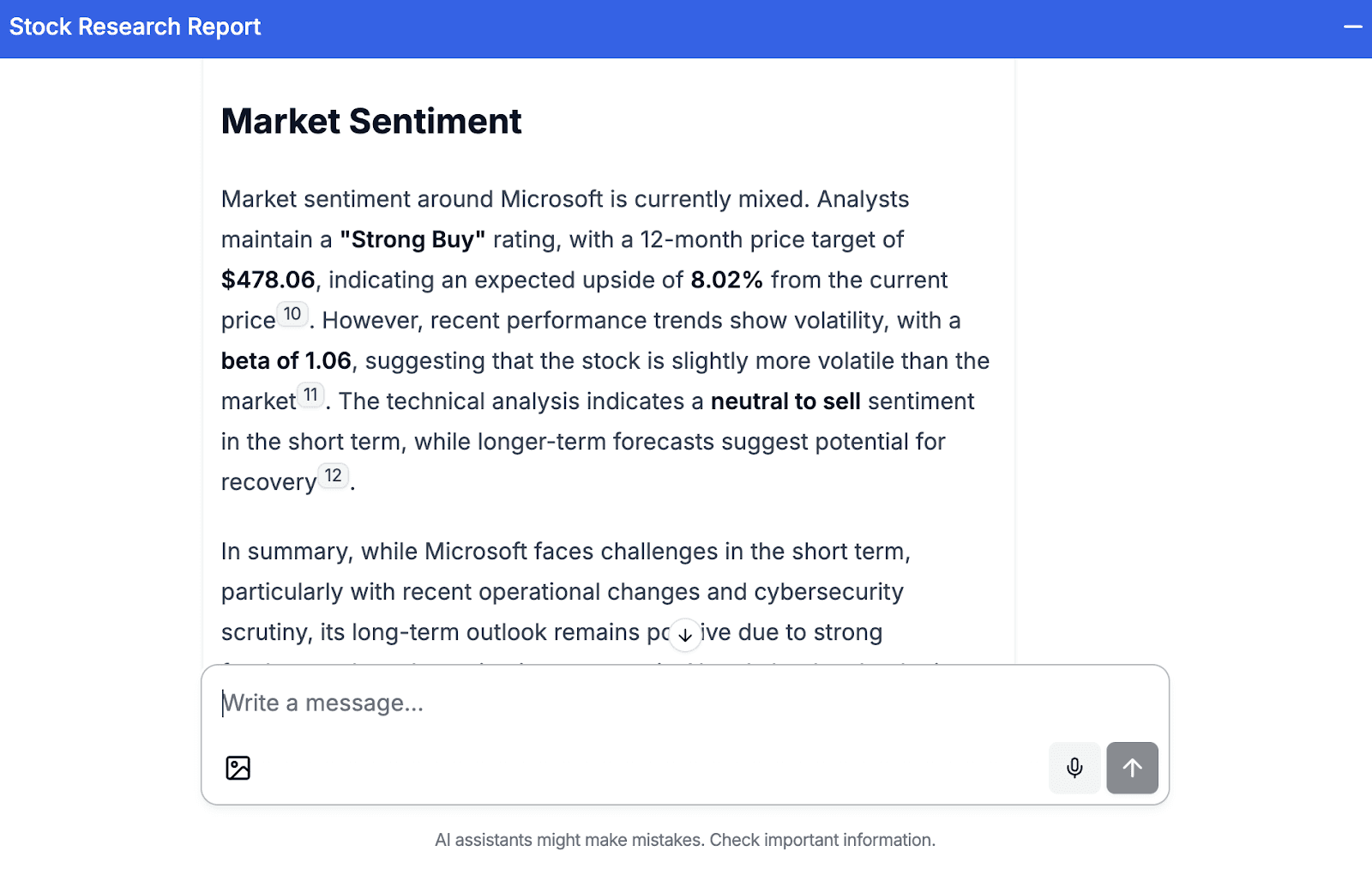
Now let’s head back to the drop-down menu. Choose the Website Chatbot.
You can simulate what the Website Chatbot will look like on your website.
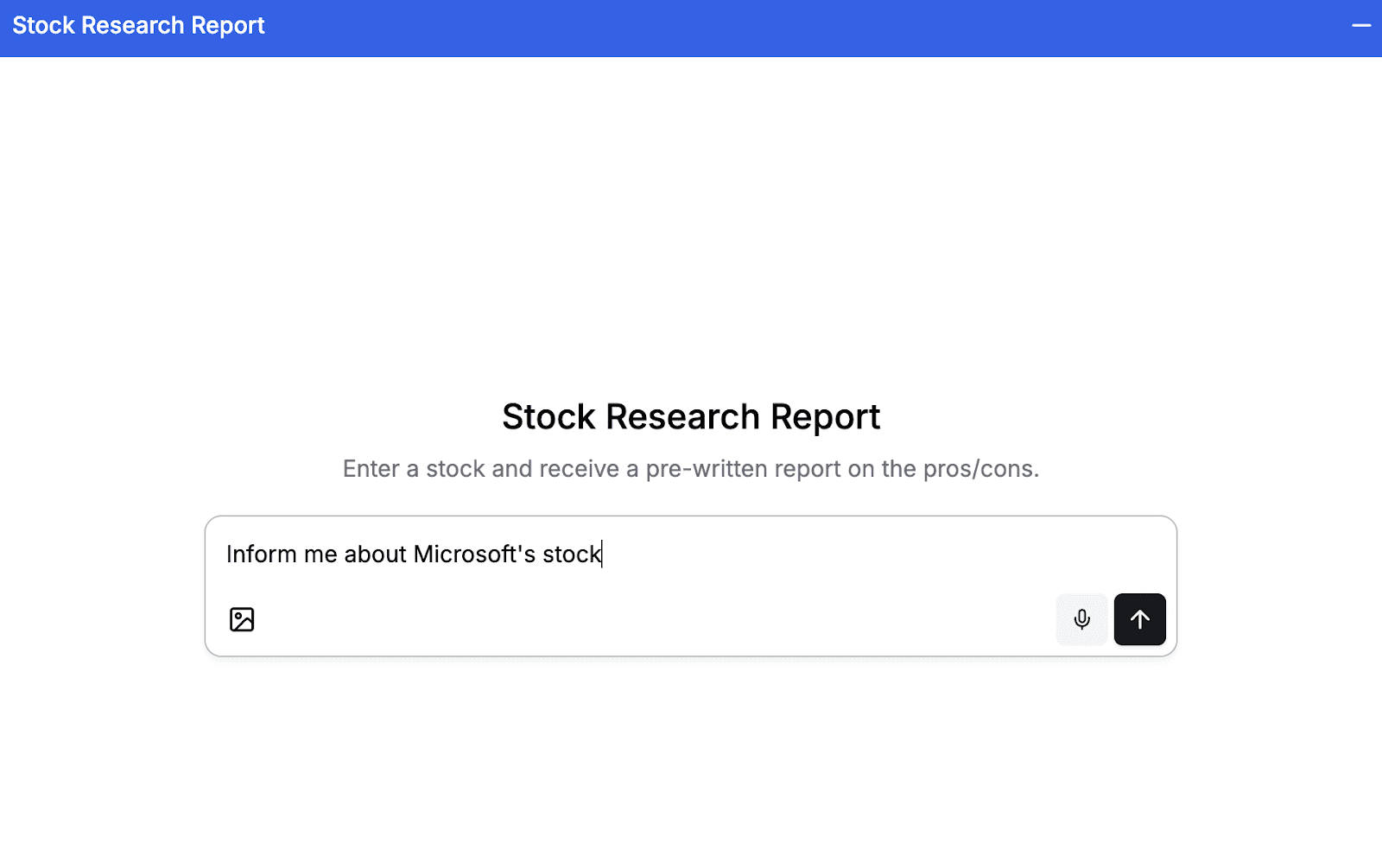
In this example, the Website Chatbot outputs a report about Microsoft’s stock price.
Slack App
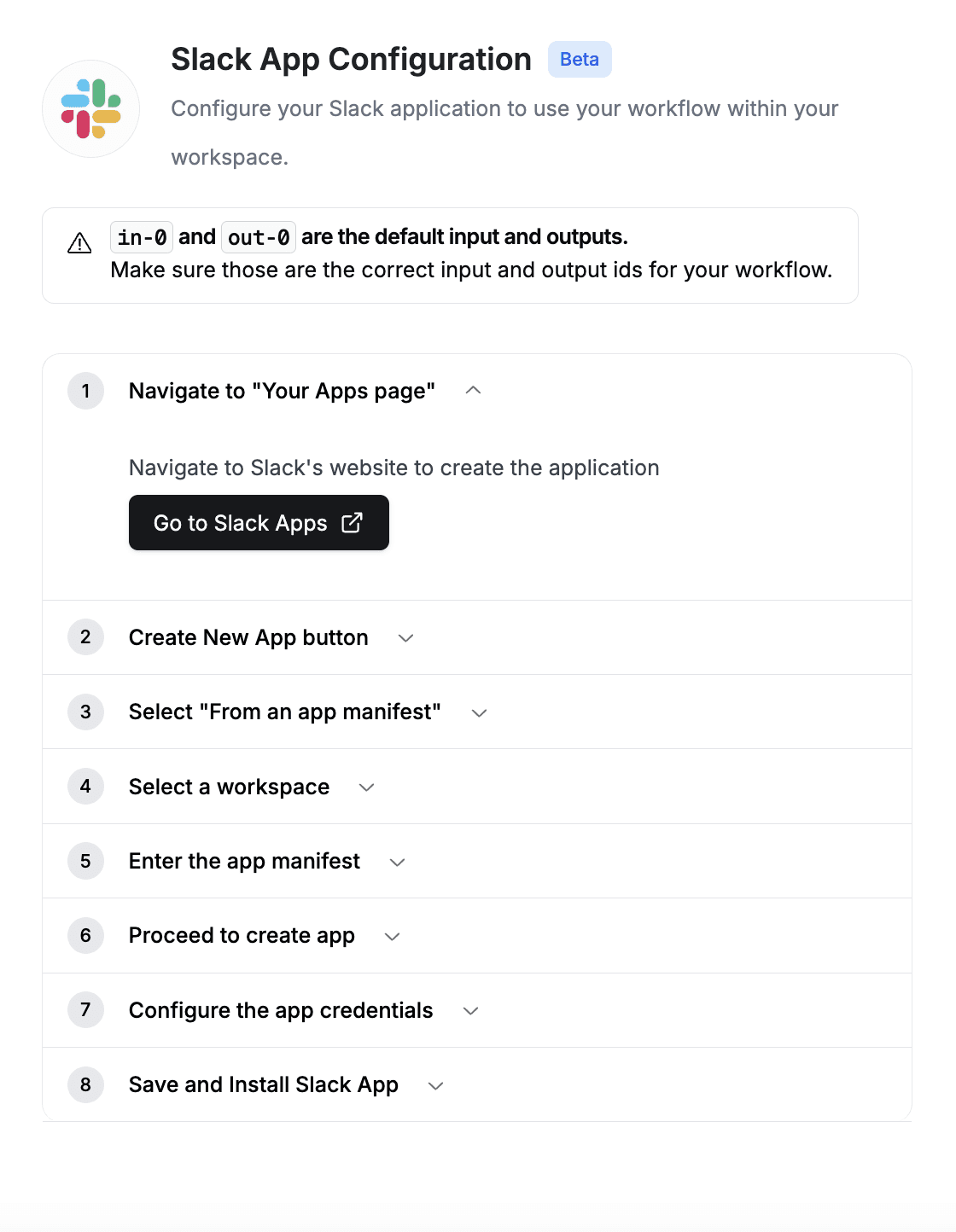
Now let’s try the Slack App interface.
Configure your Slack application to use your workflow within your workspace.
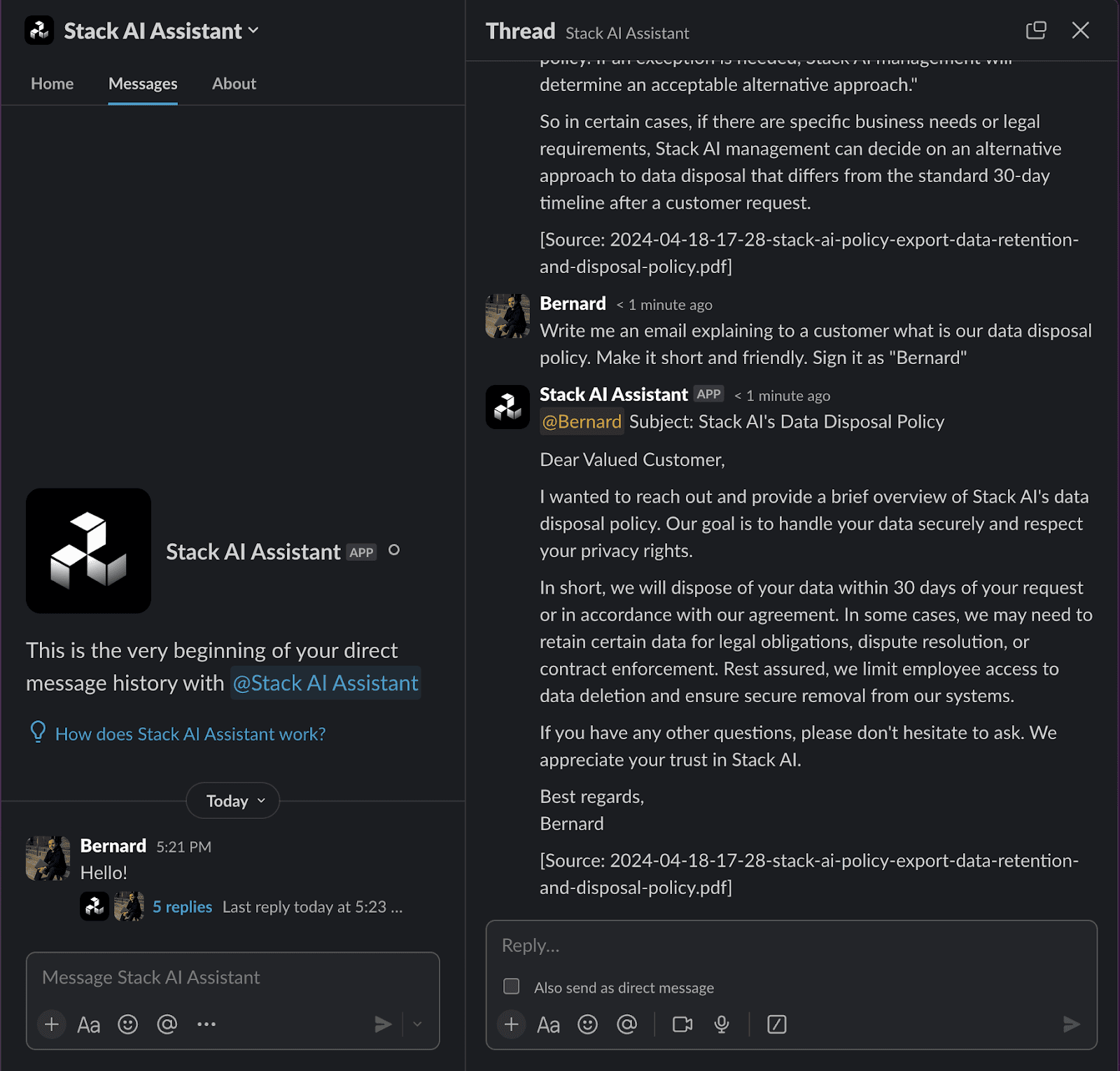
Now you can use your AI agent in your Slack workspace, allowing you to execute faster.
Microsoft Teams
Now let’s check out the Microsoft Teams user interface.
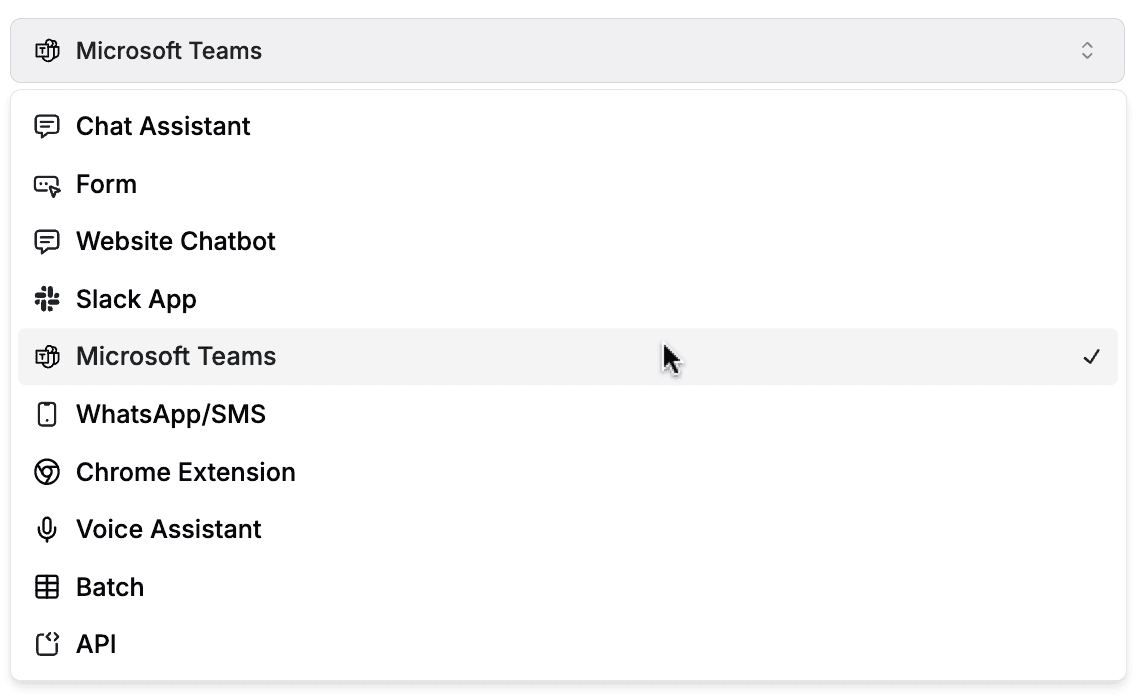
To launch the Microsoft Teams interface, you’ll have to configure your Teams application to use your workflow within your workspace.
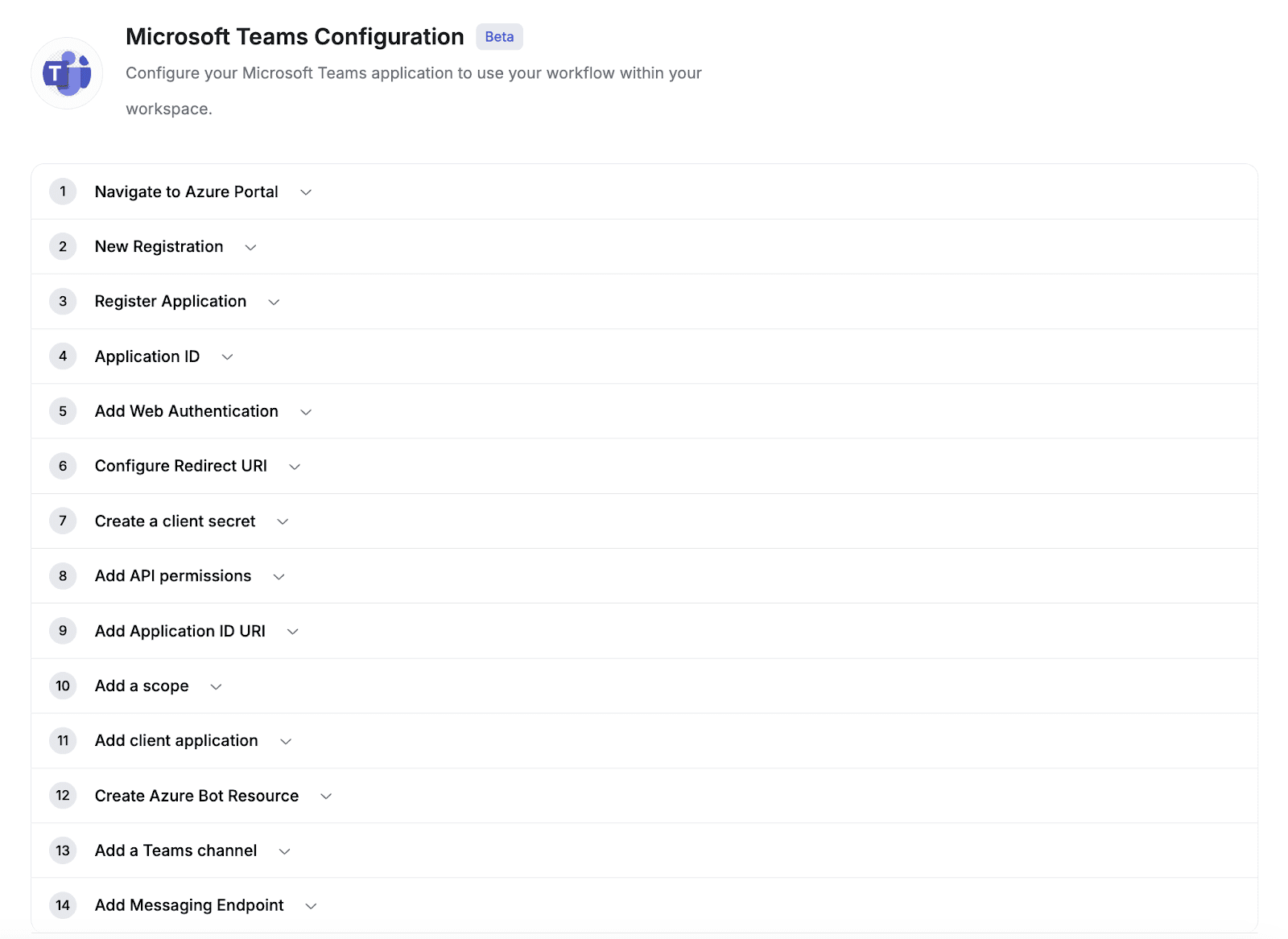
WhatsApp/SMS
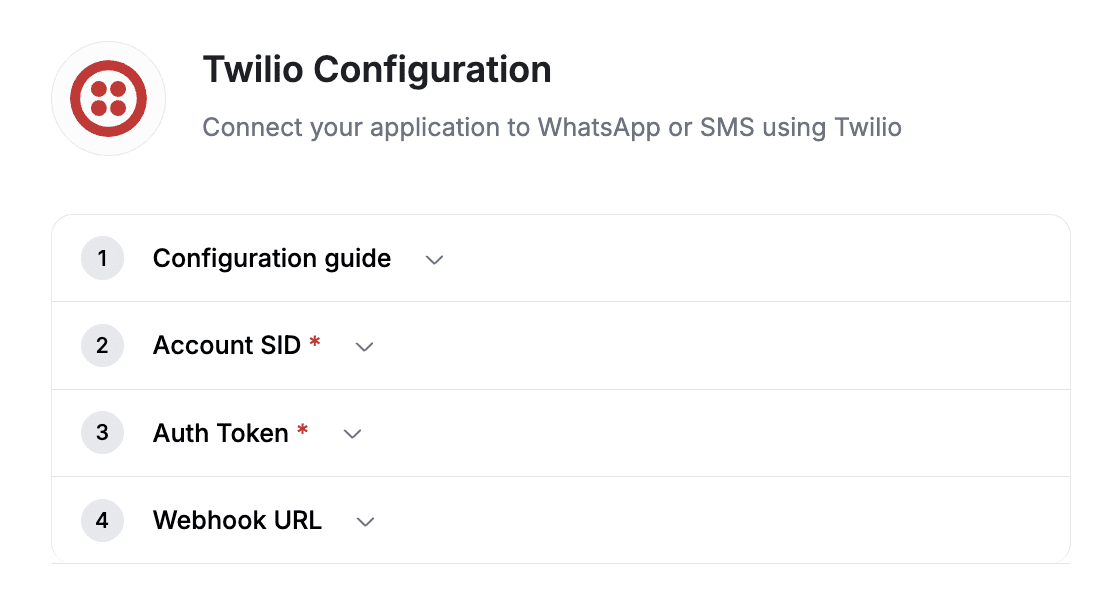
Now let’s take a look at the WhatsApp/SMS user interface.
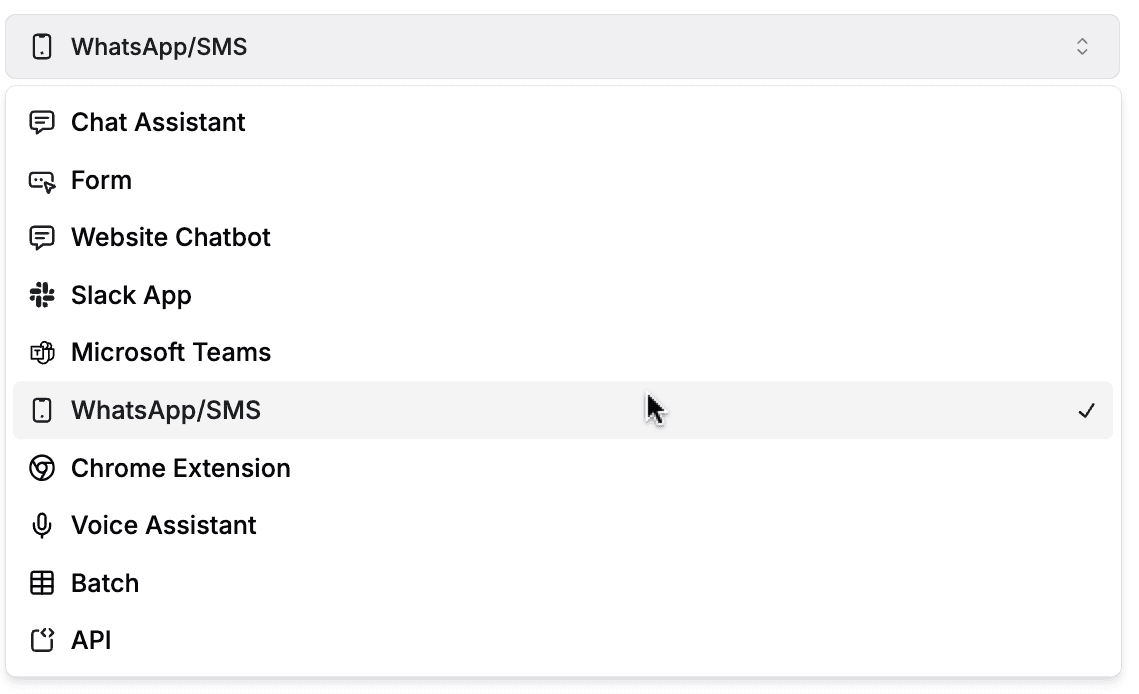
To use WhatsApp or SMS, you must connect to your app using Twilio.
Chrome Extension
You can also turn your AI agent into a Chrome Extension.
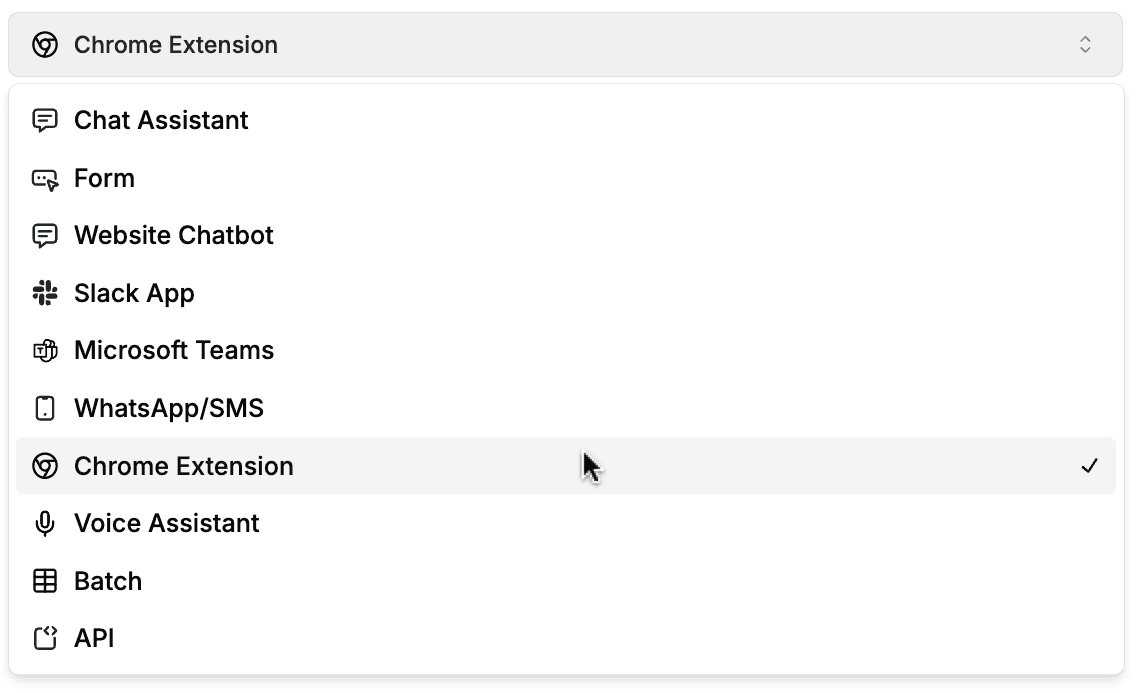
Toggle on the stock researcher extension, and look up a stock price.
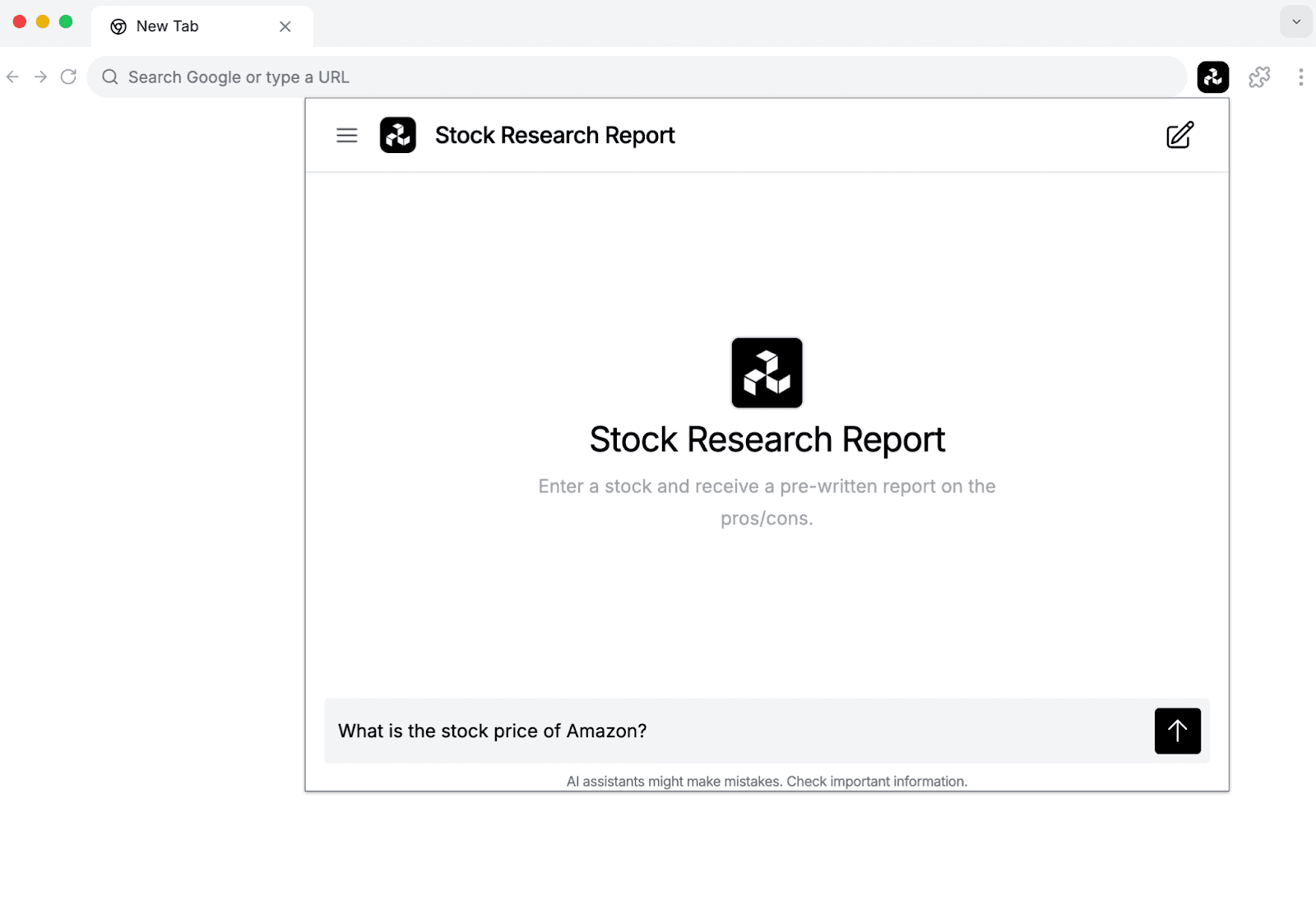
The full stock research report will appear in the Chrome extension.
Batch
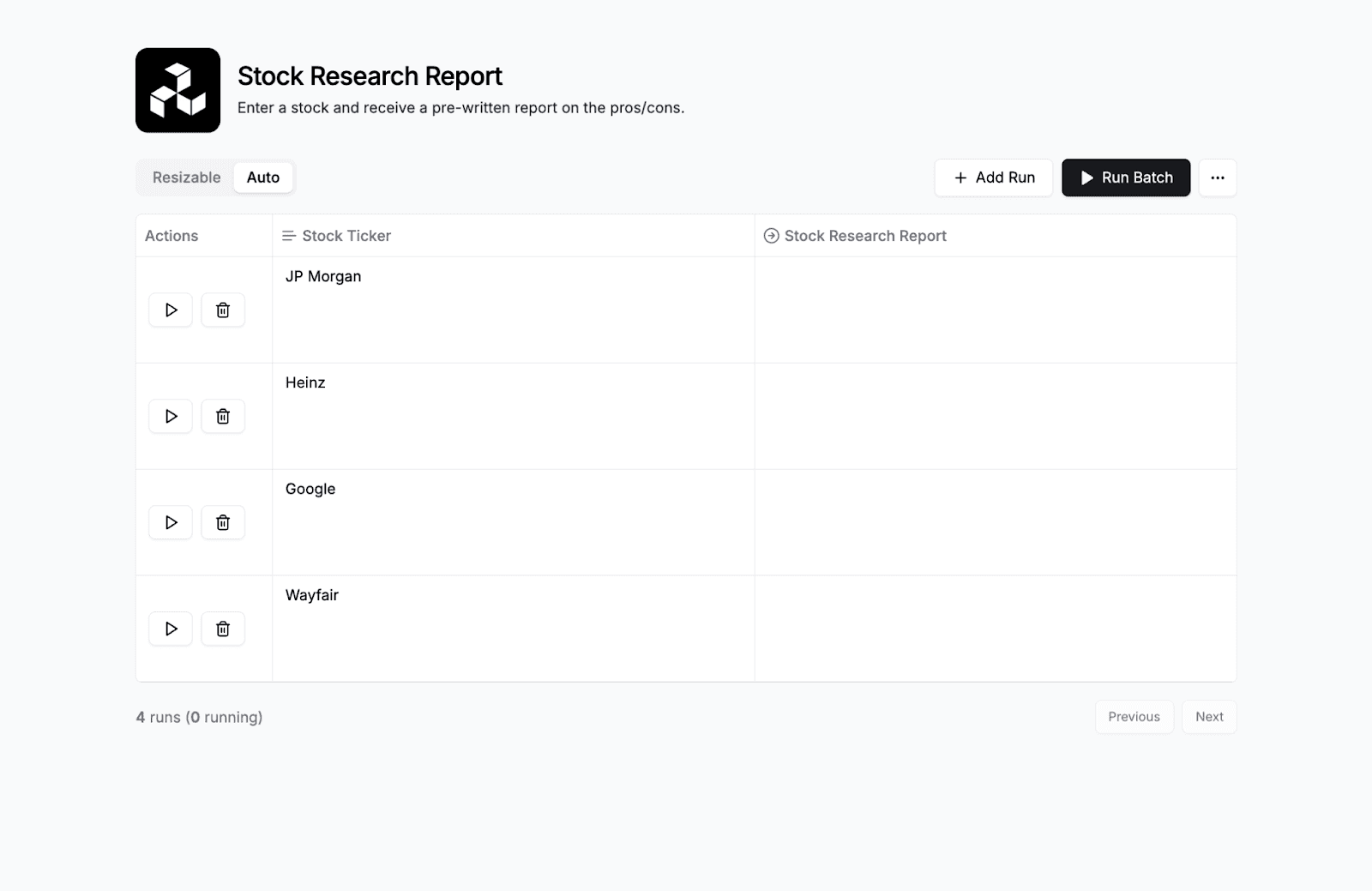
Now let’s consider a new type of user interface: batch. The batch interface allows you to run multiple instances of the AI agent all at once.
You can ask for the stock prices of several different companies at once.
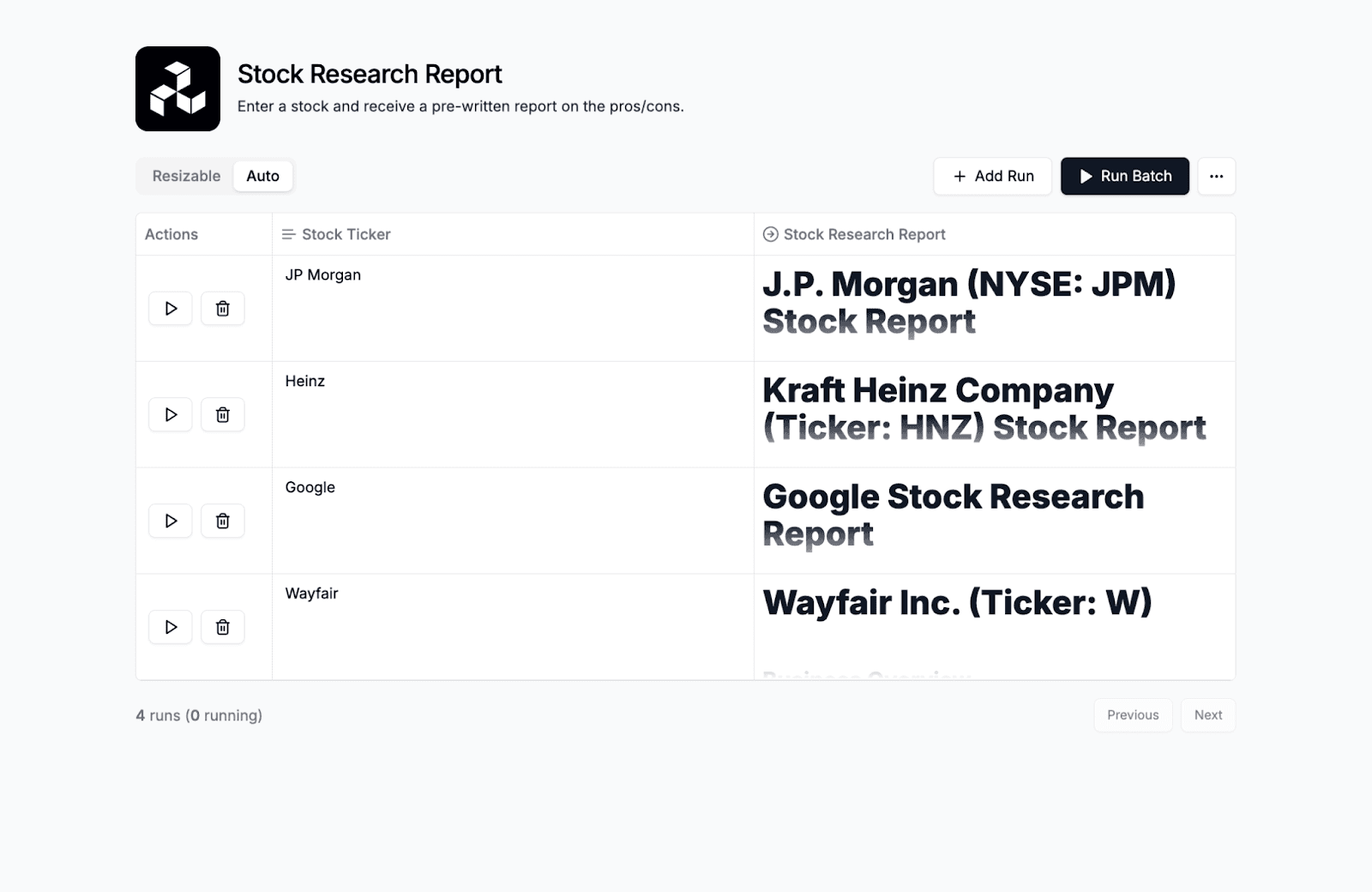
This will return multiple stock research reports at once.
API
Finally, you can build your own external interface and leverage the AI agent by API.
Choose the type of code you want to call the API with.